
Appearance
Player Manager
by Krapple Studios
Player Manager adds one Player Manager tab to every Minecraft server in a Pterodactyl 2.0 panel. From that tab you can see who is online, open any player's profile, edit their inventory by dragging items, and manage the whitelist, operators and bans — without typing commands into the console.
It talks to the server over RCON when it can, falls back to the server console when it cannot, and edits the server's own files when the server is stopped. RCON is set up automatically, so there is nothing to configure after installing the extension.
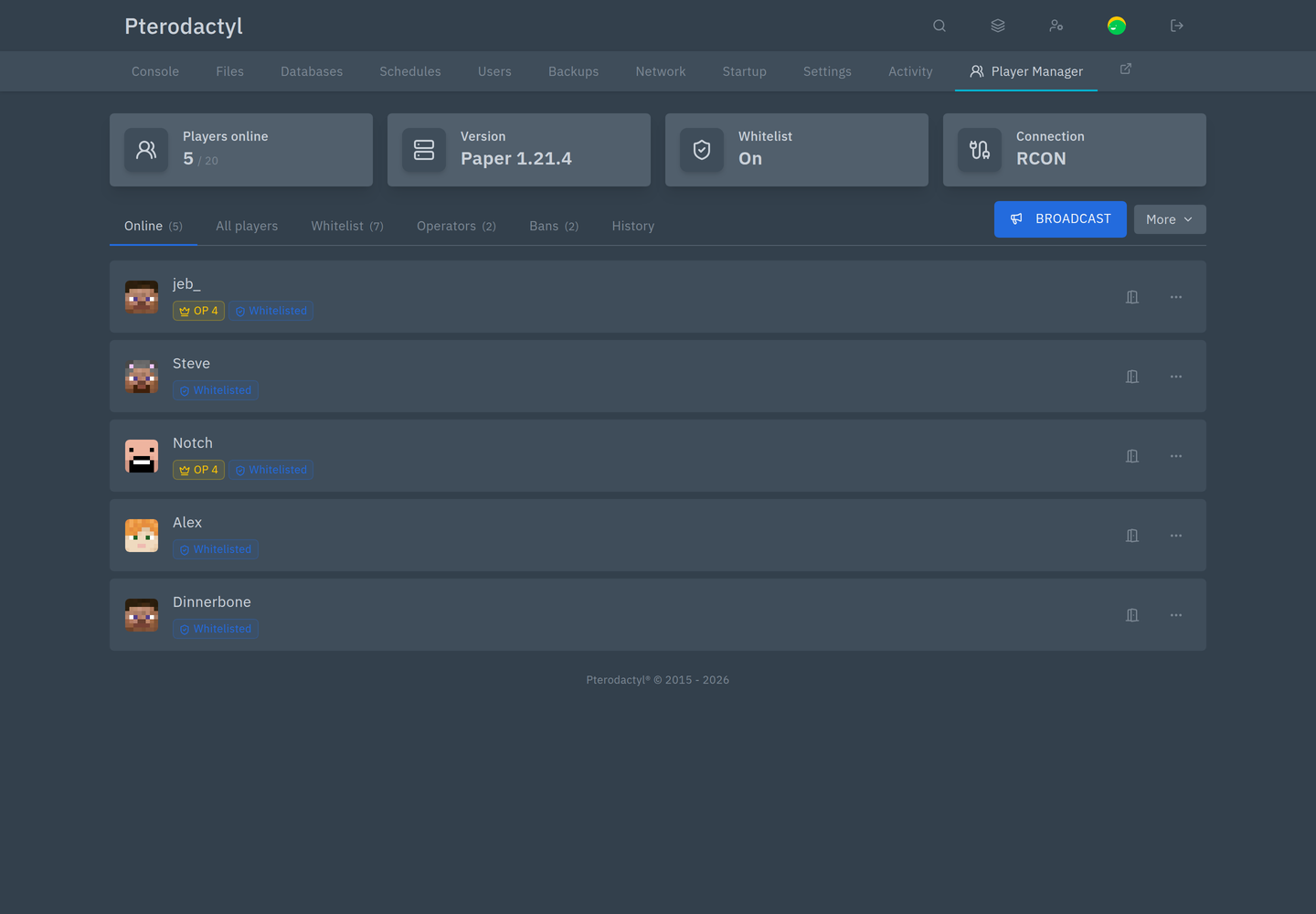
What you can do
See who is online
The main page shows four tiles — players online against the slot limit, the server version, the whitelist state and the connection method — followed by tabs:
| Tab | Shows |
|---|---|
| Online | Everyone connected right now, with operator and whitelist badges |
| All players | Everyone who has ever joined, with their roles and when they were last seen |
| Whitelist | The server's whitelist, with add and remove |
| Operators | Who is op, and at which level |
| Bans | Banned players and banned IP addresses, with reasons and who banned them |
| History | Every action taken through Player Manager, including failures |
Search works across names and UUIDs.
Open a player's profile
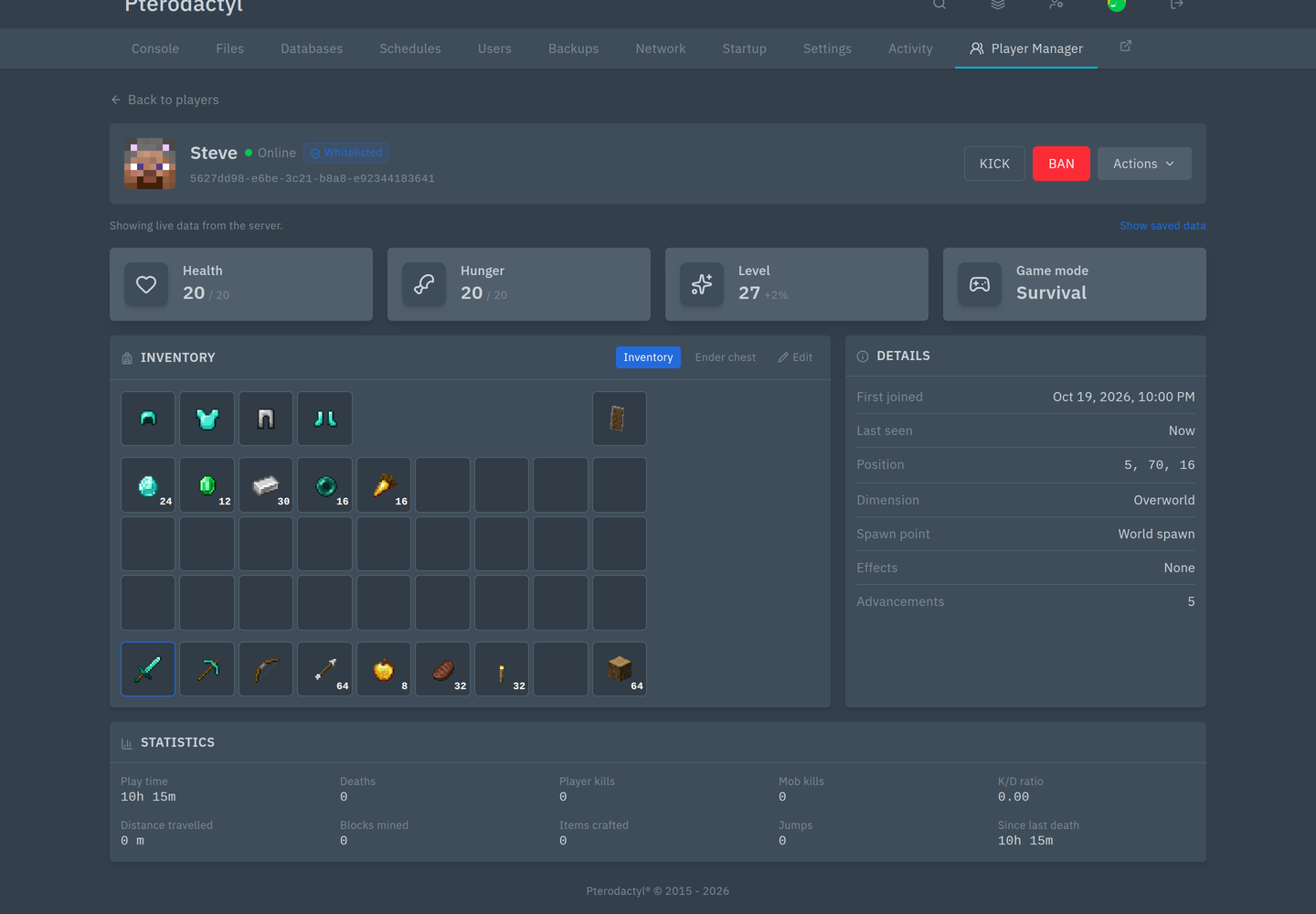
Click any player's name for a live profile:
- health, hunger, level and game mode, refreshed while the page is open
- position, dimension, spawn point, active effects and advancements
- their inventory — armour, off hand, main slots and hotbar
- their ender chest
- statistics read from the server's own stats files: play time, deaths, kills, distance mined, blocks placed and more
Hover any item for its full details, including enchantments.
Edit an inventory
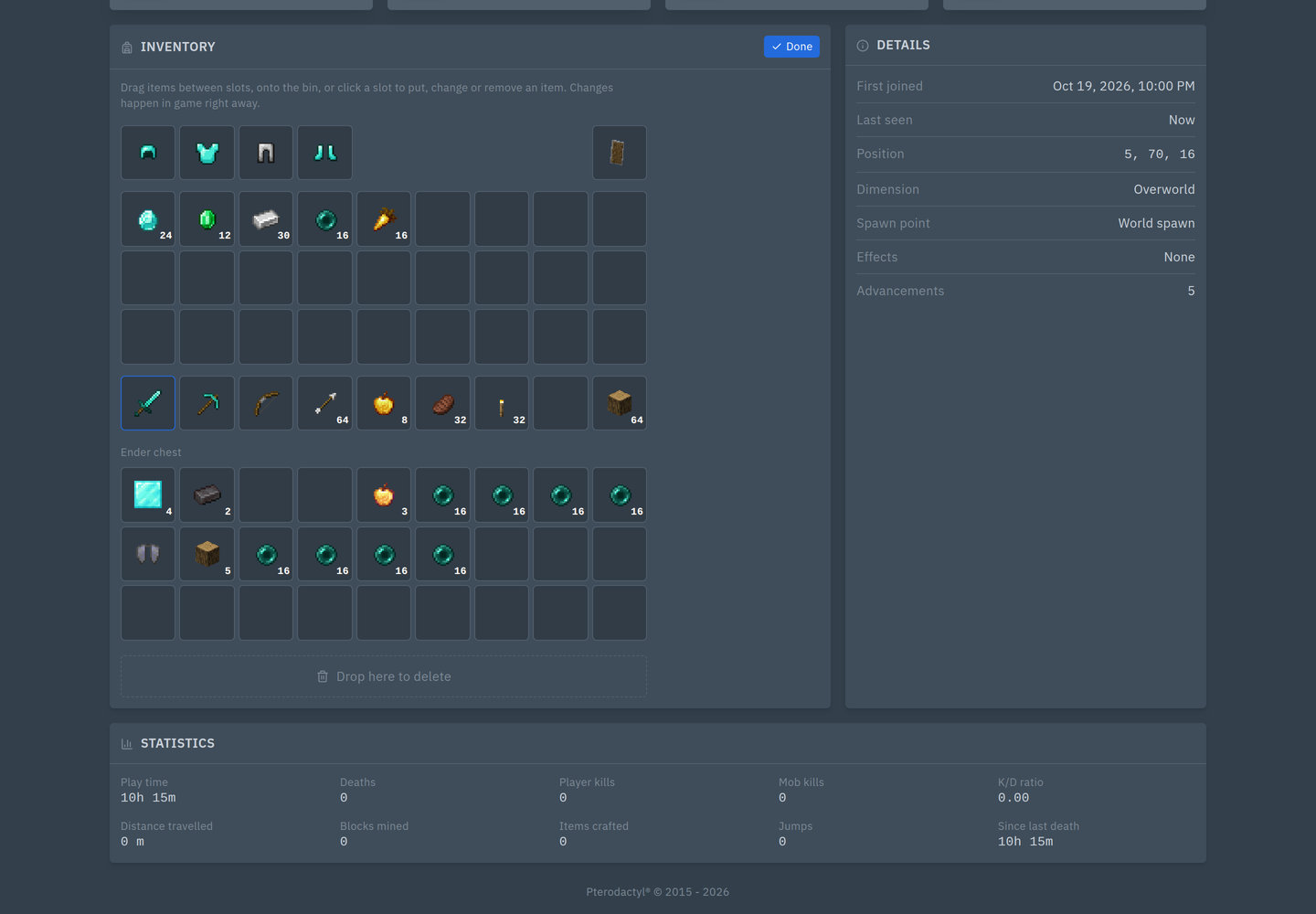
Press Edit on an online player's inventory and drag items:
- Move an item by dragging it to an empty slot
- Swap two items by dragging one onto the other
- Change an amount by clicking a slot and entering a number
- Put an item in an empty slot by typing its id and an amount
- Delete an item by dragging it onto the bin
Every change happens in game immediately. Deleting an item this way is permanent — there is no undo, so drag carefully.
TIP
The editor works on online players, because it changes the live player. An offline player's inventory is shown read-only from the last save, since Minecraft has no command to edit it.
Moderate players
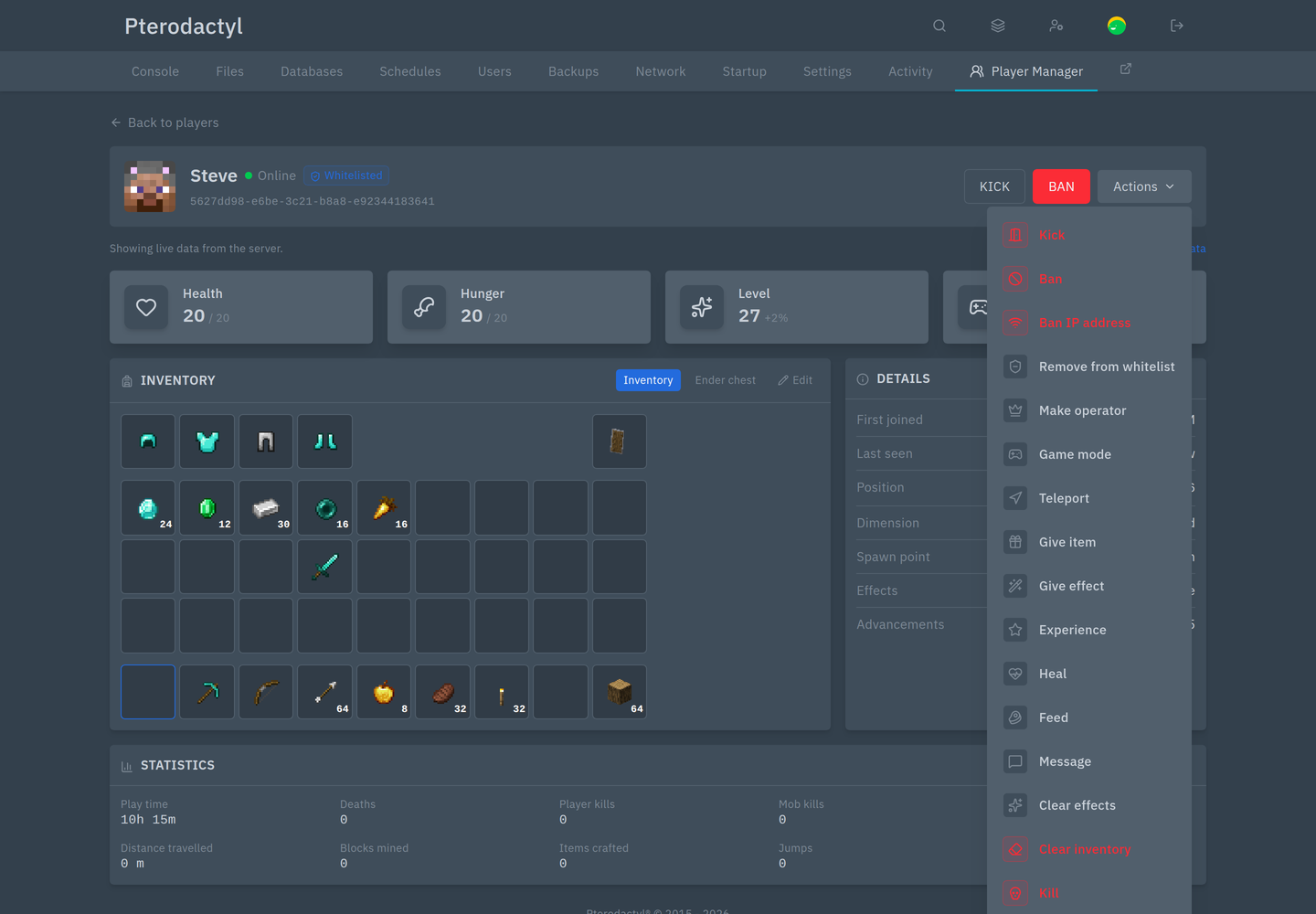
The player menu and the Actions panel cover the everyday moderation jobs:
- Kick and Ban, with one-click reasons you can customise, and IP bans
- Kick all players with a reason
- Game mode, teleport (to a player or to coordinates), give item, give effect, experience, heal, feed, message, clear effects, clear inventory, kill
- Make operator, remove from whitelist, ban IP address
- Broadcast a chat line, an on-screen title or an action-bar message
- Save world, set time, clear weather
Manage a stopped server
Whitelist, operators and bans are plain files, so they can be edited even while the server is down and take effect at the next start. Everything else says "Start the server to do this."
Requirements
| Panel | Pterodactyl 2.0 (v2.0.0-beta.2 or newer) |
| SDK | 2.0.0-beta.6 or newer (ships with the panel) |
| PHP | 8.3 or newer |
| Server | Minecraft Java Edition 1.13+ — Vanilla, Paper, Spigot, Purpur, Fabric, Forge or NeoForge. The inventory editor needs 1.17+. |
Bedrock servers, proxies and Minecraft 1.12 or older are not supported. The tab only appears on servers the panel recognises as Minecraft (the egg has the eula feature or the minecraft / minecraft-java tag); all stock Minecraft eggs qualify.
Install
For panel administrators:
- Admin → Extensions, choose Install, and upload
krapple-player-manager-1.1.0.pteroext. - Confirm. The extension installs, publishes its assets and enables itself.
- Open any Minecraft server — Player Manager is now in the server's navigation.
From the command line, in the panel directory:
sh
php artisan p:extension:install krapple-player-manager-1.1.0.pteroext --enableSee Installation for the full guide, including Docker panels, RCON setup and manual alternatives.
RCON, and why it matters
RCON is Minecraft's remote-admin protocol. With RCON on, Player Manager shows live data with no delay and keeps the console clean. Without it, it falls back to the console, which works but is limited: at most 12 names in the online list, data refreshed at best every 30 seconds, and a line in the console for every read.
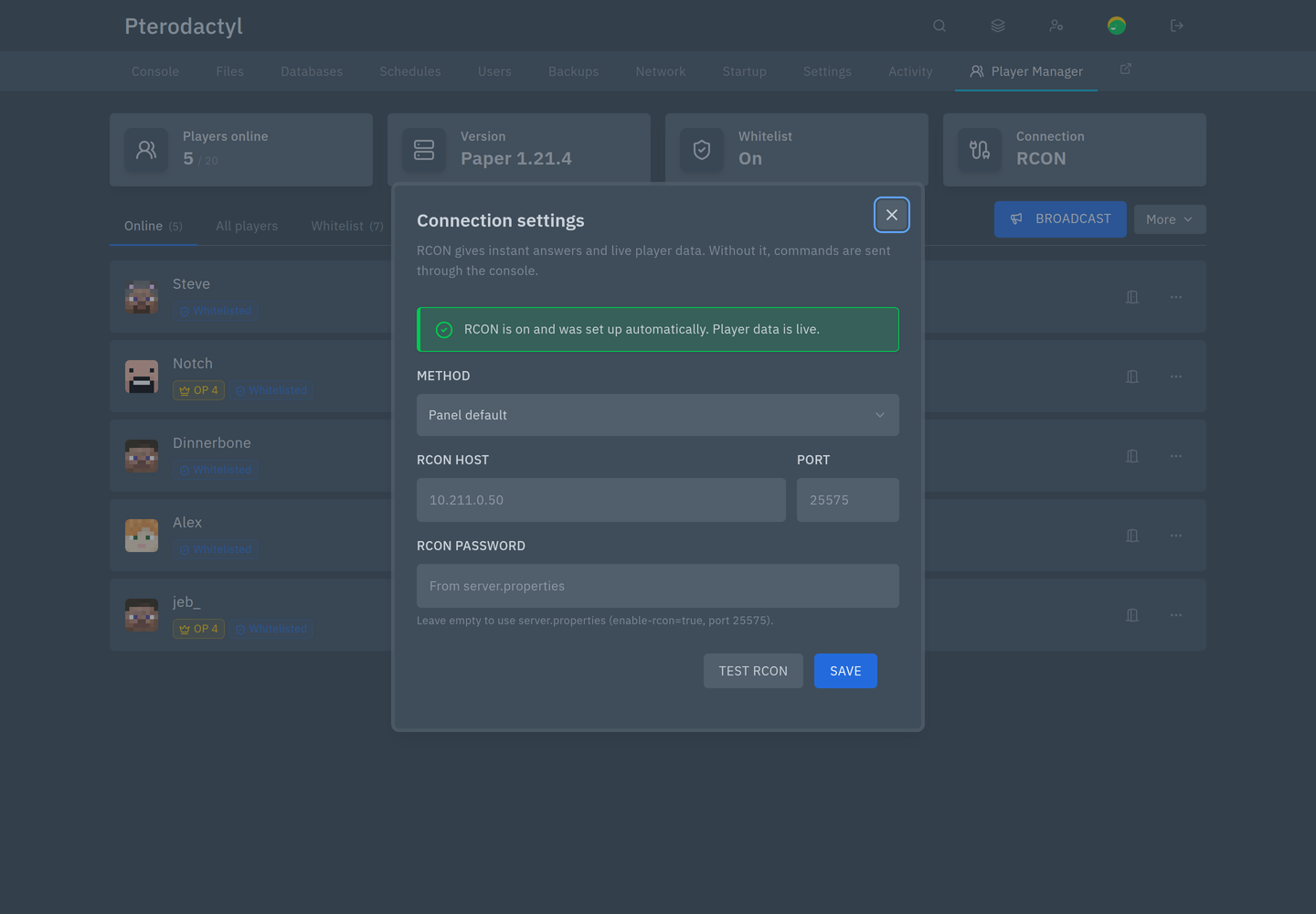
Player Manager sets RCON up for you: it writes the settings into server.properties, assigns the port to the server so Docker opens it, and restarts the server once nobody is playing because Minecraft only reads that file at startup. You can also do it from Player Manager → More → Connection settings, or prevent it entirely and configure RCON by hand.
Permissions
Player Manager adds seven permissions. Server owners and panel administrators have all of them; subusers get exactly what is ticked on the server's Users page.
| Permission | Allows |
|---|---|
| View | Open the tab and see players and lists |
| Moderate | Kick, ban, unban and IP bans |
| Access | Whitelist and operator changes, and the whitelist switch |
| Gameplay | Game mode, teleport, give, effects, experience, heal, feed, message, kill, and the inventory editor |
| Server | Broadcast, save world, time and weather |
| History | The History tab |
| Connection | The per-server connection settings and RCON setup |
The API enforces the same rules, so a hidden button cannot be used by calling the panel directly. See Permissions for a fuller table and suggested roles.
Settings
Panel-wide settings live under Admin → Extensions → Player Manager → Settings, grouped into Connection, Live updates, Features, Images and History. The defaults are sensible: RCON set up automatically, the console kept quiet, live inventories on, and history kept for 30 days.
See Settings for every option.
Good to know
- The tab is only on Minecraft servers. Other game servers are not affected.
- RCON leaves a couple of lines in the console. Minecraft prints one or two lines when a connection opens and closes; that text is fixed in the game itself and cannot be removed without a server plugin.
- Turning RCON on needs a restart, because Minecraft reads
server.propertiesonly at startup. Player Manager only restarts a server by itself when nobody is playing. - Some data may be a few seconds behind. If something else starts or stops the server, the tiles can lag up to about 20 seconds; press Refresh.
- The inventory editor needs 1.17+, and changing an item's amount on a server older than 1.20.5 can drop that item's enchantments.
Getting help
Include the error message shown in the toast, your panel version, the Player Manager version and the Minecraft version. The History tab often records the failed attempt with the server's own answer, which is faster than reproducing it.
See Troubleshooting for common problems. Contact your hosting provider for account or access issues, or [email protected].